When you open one of the PIM applications (Personal Information Management: Mail, Calendar, Contacts, or Tasks) with the Basic Notes Client, you see a different look than when opening the same database in the Standard Notes Client.
In the case of the Calendar, the Basic Client even still has the weekly view known from older Notes versions (left column: Monday to Wednesday, right column: Thursday to Sunday). This view has also been available again since Notes/Domino 9 ("Weekly Planner"), but had disappeared for a while in between.
Can You Also Use the "Basic" Look in the Standard Client?
This is actually quite simple. Hold down the following keys when opening your mail database (e.g., double-click on the database icon in the workspace).
- Windows: Ctrl+Alt
- macOS: Alt+Cmd
This will at least open the mail area in the "Basic" look.
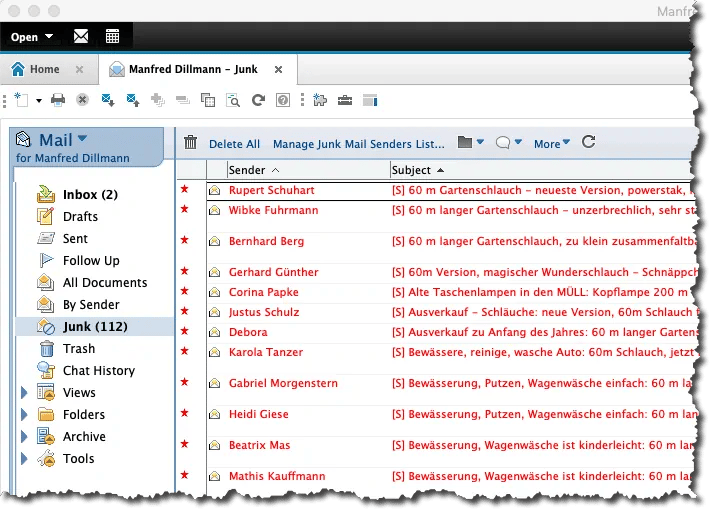
Mail database opened in the Standard Client with "Basic" look
How Do You Get to the Calendar, Contacts, or Tasks?
Use the "Mail" button located above the navigation on the left and hold down the keys mentioned above.
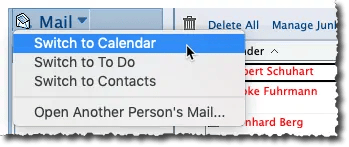
Switching to Calendar, Contacts, or Tasks
The calendar is now displayed in the "Basic" look in an additional tab.
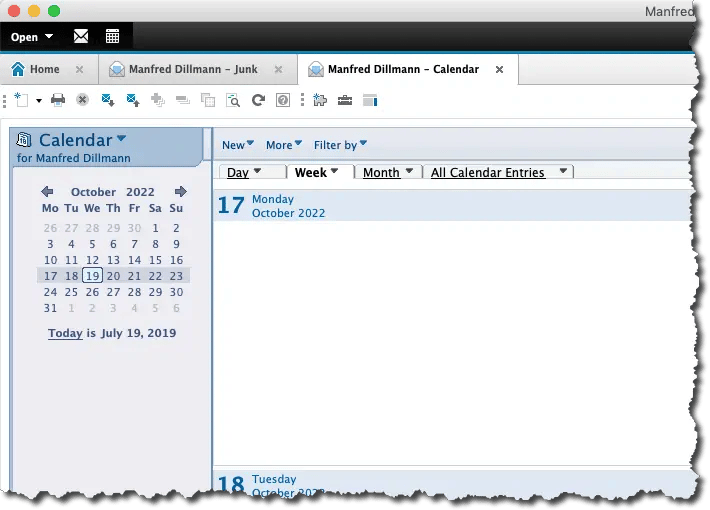
Calendar opened in the Standard Client with "Basic" look
Can Both Views Work Simultaneously?
Yes! Simply open another area (Mail, Calendar, Contacts, Tasks — but as shown in the screenshot "Switching to Calendar, Contacts, or Tasks") and do NOT press the key combination mentioned above.
If you want to open the mail area twice (i.e., both Standard and "Basic" look), you need to open the calendar as an "intermediate area." When the mail area is open, "Mail" is not available in the selection dropdown — but it is available in the calendar (or one of the other areas).
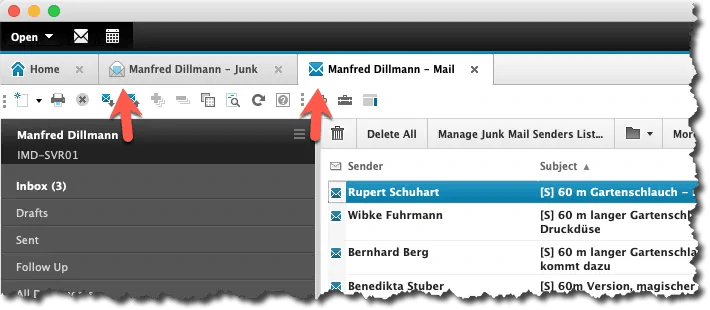
Mail database opened simultaneously in Standard and "Basic" look
Additional Tip
If you right-click on one of the open tabs and select "Open in New Window" from the popup menu, you can position both windows simultaneously on the screen and work in them.
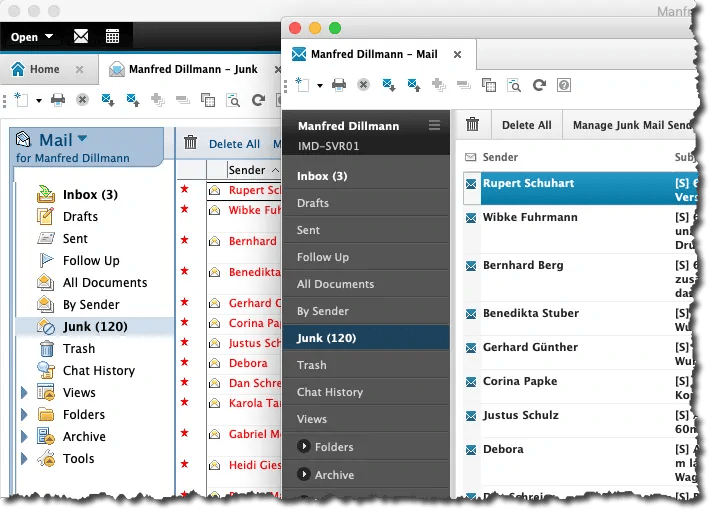
"Basic" and Standard view simultaneously in separate windows
What Is This Good For?
When you use the Standard Client yourself and need to help someone with a Basic Client, you have the same look and functionality at hand.