Have you ever wondered if you can open any application (database) in its own window? Just like the built-in help databases do?
What does "open in its own window" mean?
Normally, a Notes application opens in a new tab in the Notes Client:
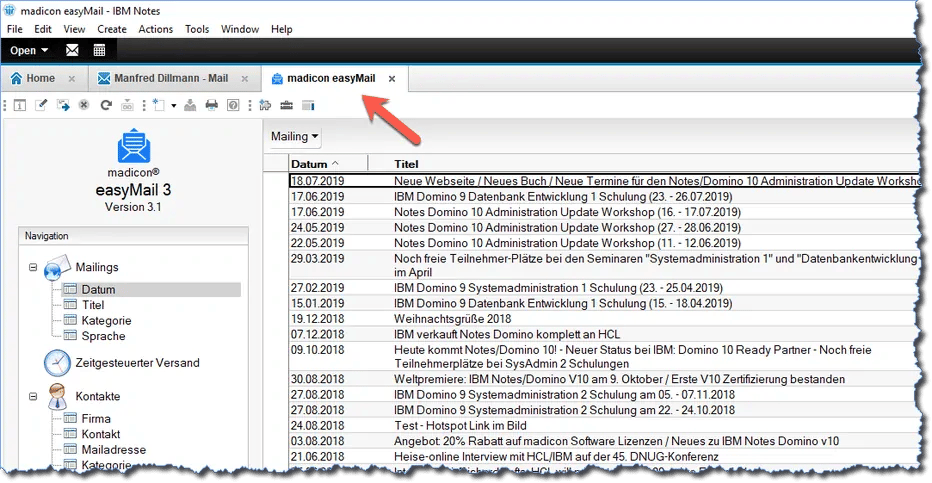
Application "madicon easyMail" opens in a new tab
In contrast, the built-in help databases open in their own window and can be moved to a different position on the screen or even to another monitor.
However, this doesn't only work with the help databases:
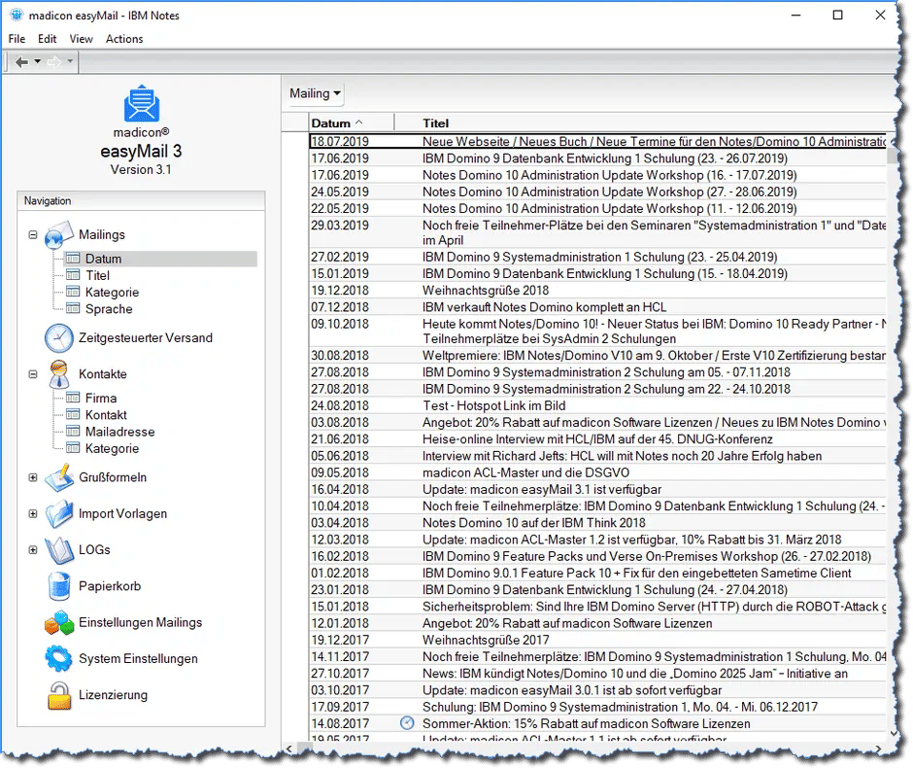
Application "madicon easyMail" opens in its own window
How does it work?
When opening an application, the Notes Client checks for a specific attribute (which is apparently hard-coded in the Notes Client) in the database properties.
If you enter the term NotesHelp in the categories for listing in the database catalog, this application will from now on open like a Notes help database.
In the workspace ("tile wall"), right-click to display the properties of the desired application:
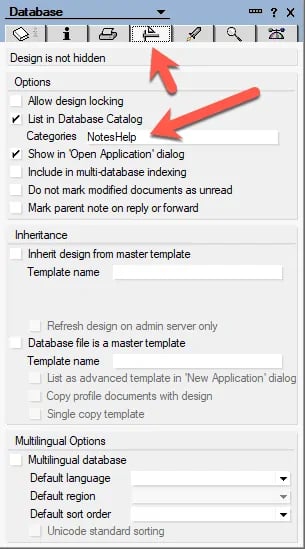
Properties of a Notes database – change in the "Design" tab
Select the "Design" tab (icon: hammer + set square) and follow these steps:
- Enable the option "List in Database Catalog".
- Enter NotesHelp in the "Categories" field.
- Close the properties dialog.
- Remove the database icon from the workspace (click the "tile" → press the "Del" key).
- Reopen the application in the workspace.
Note
In my recent tests with the Notes 10 client (both macOS and Windows), steps 4 and 5 were not always necessary. However, if you want to revert to "opening the application in a tab" (undo step 2), the last two steps were ALWAYS required.
From now on, the application will always open in its own window.