You can display the database filename in addition to the database title in the "tiles" of your workspace.
Show Database Filename in the Tile?
Normally, the database icon (aka "tile") shows the database title along with the storage location (server name or "on Local") of a Notes/Domino application.
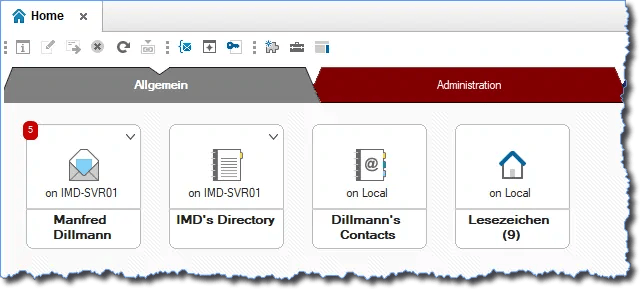
Database icons in the Notes Client workspace – normal display
The tiles can additionally show the database filename:
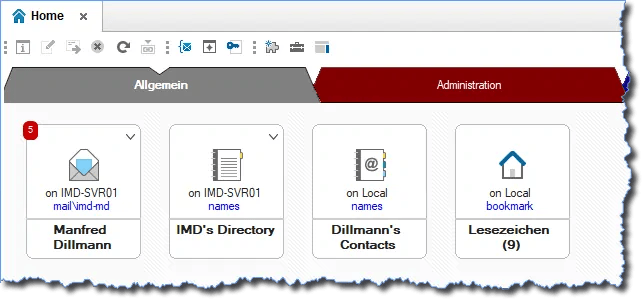
Database icons in the Notes Client workspace – showing the database filename
You can clearly see that the "tiles" become slightly taller to accommodate the additional path/filename information.
This does not happen if you have the "Textured Workspace" enabled, which dates back to Notes R4 – you can find this setting in the preferences (Menu "File" -> "Preferences" -> "Basic Notes Client Configuration" in the "Additional options" section). The path/filename then "sticks" to the bottom edge of the database icon and is not easily readable.
How Does It Work?
Click on the option "Show Server Names" in the "View" menu.
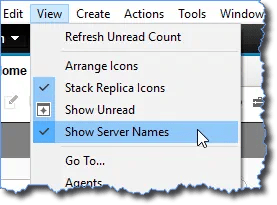
Option "Show Server Names" in the "View" menu
The storage location (server name or "on Local") will no longer be displayed in the database icon.
Click the same menu item again – but this time hold down the "Shift + Ctrl" keys.
Now the database filename is additionally shown in the "tile".
Are There Any Side Effects?
None that I know of. I have been using this feature since Notes version 3.x and have not encountered any issues in any version since then.
However, I do have one wish – maybe HCL will implement it someday?
My Wish: A Permanent Setting in the Notes Client
Since this is a previously undocumented feature, the display of database filenames disappears after restarting the Notes Client.
Unfortunately, I have not been able to find a NOTES.INI parameter (or any other setting option in the Notes Client) that permanently enables this display.