In the later parts 2+3 of this tip I would like to introduce two action buttons to you that can basically be used in any Notes/Domino application for an interactive form. As you will see, they really are "smart action buttons" – they enable an interaction with the end user that is normally not possible in this form in the Notes client.
In the first part of the tip, however, I would first like to briefly address (this should be particularly interesting for beginners in Notes programming) a popular "bad habit" of developers.
What is this about?
Action buttons were introduced with Release 4.x and are now used in almost every Notes/Domino application. End users have become accustomed to them in the meantime – nobody would probably still look into the "Create" menu today to create a new document there by clicking on the form name. This makes the use of action buttons practically a MUST.
Where is the problem?
Anyone who doesn't think about good user guidance tends to show the end user too many action buttons that often don't match the current use of the application. This is less often observed in views – but there are also no interactions (editing, saving, etc.) with documents carried out here. Within forms, however, this happens much more often – after all, forms are the classic tools for creating and editing documents.
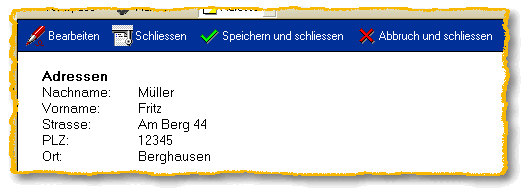
Document opened in read mode
So - which action buttons do you use now? From the developer's point of view, everything is clear of course: the two left action buttons when reading the document – and as soon as you edit the document, the two right action buttons.
Everything clear? Certainly not for the end user – they don't know the source code behind the buttons.
Solution
As is often the case in Notes, this is quite simple: use the Hide-When attributes for the action buttons!
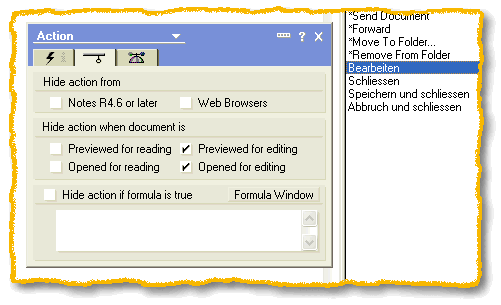
Properties dialog of an action button, tab: "Hide-When"
Show in mode | ||
Action button | Read | Edit |
Edit | X | |
Close | X | |
Save and close | X | |
Cancel and close | X |
By configuring according to this matrix, the end user is only shown the action buttons that make sense for the respective document mode. The result is convincing.
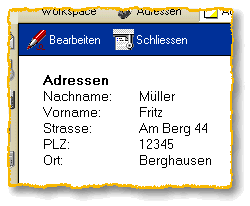
Document in read mode
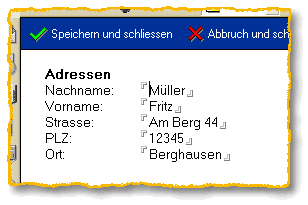
Document in edit mode
In parts 2+3 I will present to you the source code for the buttons "Save and close" as well as "Cancel and close". With functionality that also matches the labels of the action buttons…