Probably the fastest way to create connection documents in the Notes Client.
Why Connection Documents?
Connection documents help the Notes Client (as a supplement to DNS name resolution or entries in the local HOST file) to map Domino server names to an IP address.
Where Can I Find Connection Documents and How Do I Create New Ones?
Connection documents are stored in the Contacts application (local database names.nsf). After opening the Contacts application, select "Advanced" in the left navigation. A new tab opens in the Notes Client and you will find the connection documents under the "Connections" navigation item.
New connection documents can be created using the "New" action button. That would be the regular way.
How Can This Be Done Faster?
Open the dialog for opening an application/database in the Notes Client (menu item: "File" -> "Open" -> "Notes Application" or hotkey: Ctrl+O).
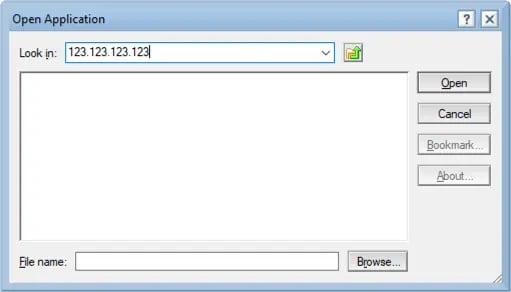
"Open Application" dialog in the Notes Client
Type the IP address of a Domino server reachable by you into the first field ("Look in"). If the connection can be established, the Domino server will display the usual list of available databases.
That's all there is to it. You can observe a corresponding message in the status bar of the Notes Client.
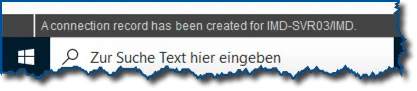
Notes Client message in the status bar
You will now actually find a new connection document for this server in the Contacts application.
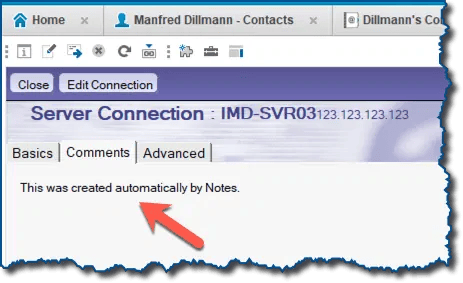
Note on the automatically created connection document
On the "Comments" tab in the connection document, you will find a corresponding note for automatically created connection documents.
The connection documents generated this way automatically receive the priority "Low" on the "Advanced" tab. This can sometimes lead to strange side effects. Therefore, I recommend: be sure to change the priority to "Normal" afterwards, so the document will actually always be used when you expect it to be.
Is That All?
Basically, yes. You may still want to change or add certain details (e.g., the assignment to a specific working environment, etc.).